

Appearance
Recruitment
The Recruitment module is where the system manages the entire hiring journey — from opening a role, to attracting and screening candidates, to interviewing and finally hiring. It's typically used by recruiters, hiring managers, and HR administrators, though individual employees can be pulled in as interviewers or referrers.
This guide gives the big picture: what the module is for, how a hire flows through it end to end, who sees what, and what can be customized. Deeper guides for each area are linked below. No technical background needed.
Purpose
Recruitment answers one question for the people running a hiring process: "Where does this candidate stand, and what do I need to do next?"
Instead of tracking openings and candidates in spreadsheets or email threads, everything lives in one place:
- Job openings, published internally, on a public careers page, and optionally to LinkedIn.
- A single pool of candidates, however they applied.
- A visual pipeline showing exactly which stage every candidate is in.
- Interview scheduling, notes, ratings, and document requests.
- A talent pool for good candidates who aren't right for this role, but might be for the next one.
What's Included
Recruitment is made up of a few connected areas, each covered in its own guide:
| Area | What it covers |
|---|---|
| Job Requisitions & Open Jobs | Creating a hiring drive — title, vacancies, positions, dates — and publishing it to the careers page and LinkedIn. |
| Recruitment Pipeline & Stages | The visual board candidates move across, and how each job opening's stages are configured. |
| Candidates | Candidate profiles, resumes, documents, notes, ratings, and rejection. |
| Interviews | Scheduling interviews and recording outcomes. |
| Application Surveys | Custom screening questions attached to a job opening's application form. |
| Skill Zone | A talent pool for strong candidates kept on file for future openings. |
| Recruitment Dashboard | The module's own at-a-glance view of hiring activity — see below. |
The Hiring Journey
A typical hire moves through Recruitment like this:
- A job opening is created. A recruiter or recruitment manager sets the title, job position(s), number of vacancies, dates, required skills, and any screening questions.
- It's published. The opening can appear on the company's public "Open Jobs" page and be auto-posted to LinkedIn — or stay internal-only.
- Candidates enter the system. They apply through the public application form (answering the screening questions and uploading a resume), or are added directly by a recruiter — for referrals, LinkedIn sourcing, or walk-ins. Each candidate's source is recorded.
- They move through the pipeline. Every job opening has its own sequence of stages (for example: Applied → Test → Interview → Hired). Each stage can have its own stage managers, who own moving candidates through that step.
- They're evaluated. Along the way, interviews are scheduled, notes and documents are collected, and candidates can be rated.
- The outcome is recorded. A candidate is either hired — at which point an offer letter is tracked through to acceptance and joining, and the candidate becomes the starting point for the Onboarding module and, eventually, a full employee record — or rejected, with a reason on file. A strong candidate who isn't right for this particular role can be added to the Skill Zone talent pool instead of being lost.
What Each User Sees
| Recruitment area | Employee | Interviewer | Stage Manager | Recruitment Manager | HR Administrator / Recruiter |
|---|---|---|---|---|---|
| Refer a candidate | ✅ | ✅ | ✅ | ✅ | ✅ |
| View interviews they're assigned to | — | ✅ | ✅ | ✅ | ✅ |
| View/manage candidates in their assigned stage | — | — | ✅ (their stage) | ✅ (their opening) | ✅ |
| Create/edit job openings | — | — | — | ✅ (their opening) | ✅ |
| Configure pipeline stages & survey questions | — | — | — | ✅ (their opening) | ✅ |
| Manage Skill Zone talent pool | — | — | ✅ | ✅ | ✅ |
| Recruitment Dashboard (org-wide) | — | — | ✅ | ✅ | ✅ |
In short:
- Employees generally have no visibility into Recruitment unless they're pulled in — for example, as a referrer or an interviewer.
- Interviewers see only the specific interviews they've been assigned to, along with the candidate details needed for that interview.
- Stage Managers are assigned to a specific stage of a specific job opening, and can act on the candidates sitting in that stage.
- Recruitment Managers are assigned to a specific job opening and have full control over it — candidates, stages, questions, publishing.
- HR Administrators / Recruiters see everything across all job openings for their company.
Candidates aren't internal users
Candidates interact only with the public application form, and — if enabled — a simple self-tracking view of their own application status.
How Visibility Is Decided
Three things determine what a person can see and do in Recruitment:
- Their role and permissions. Standard permissions control broad access — for example, being able to view all candidates or all job openings.
- Whether they're assigned to that specific opening or stage. Recruitment Managers and Stage Managers are assigned per job opening and per stage (see User Roles & Access) — this is a targeted assignment, not the general reporting-line manager access used elsewhere in the system. Likewise, an interviewer can see a candidate simply because they're on that candidate's interview panel, even without any recruitment permission.
- Which company the data belongs to. In a multi-company setup, job openings and candidates belong to a company, so a person only sees the openings and candidates for the company they currently have selected.
A couple of areas are looser on purpose: Interviews, Skill Zone management, and the Recruitment Dashboard don't check which opening or stage someone manages — managing any one of them is enough to unlock the whole area, company-wide. The individual guides call this out where it applies.
Customization Options
Recruitment is configurable at the job-opening level and at the company level:
- Publishing. Choose whether an opening appears on the public Open Jobs page and whether it auto-posts to LinkedIn.
- Screening questions. Attach custom application-form questions per opening, or reuse a saved question template.
- Required fields. Decide whether a resume or profile photo is mandatory for candidates on a given opening.
- Pipeline design. Define however many stages an opening needs, in whatever order, each with its own stage managers.
- Candidate self-tracking. Optionally let candidates check their own application status, and optionally show them their overall rating.
- Rejection reasons. Maintain a reusable list of reasons for turning down a candidate.
Recruitment Dashboard
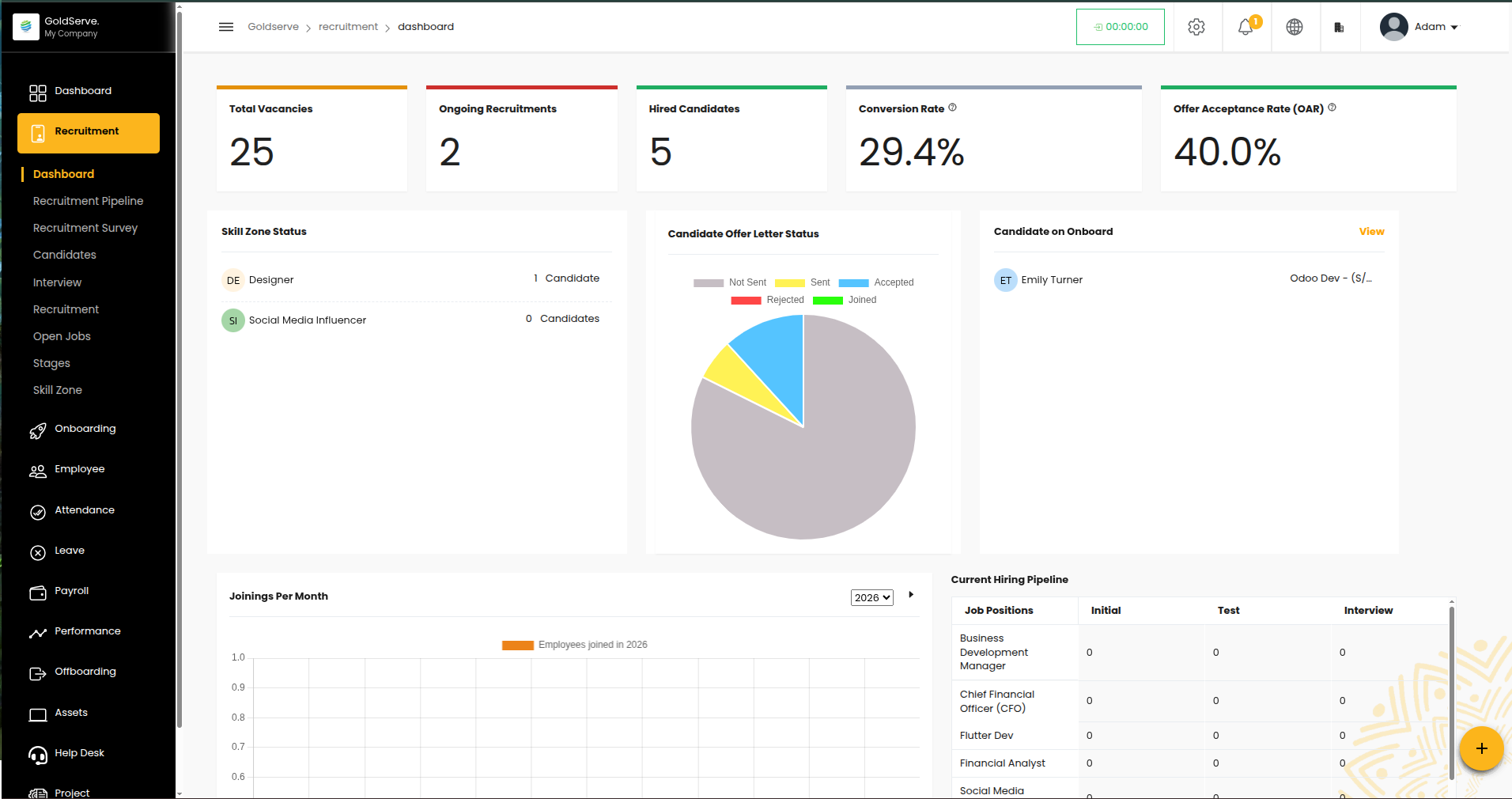
The main system Dashboard gives a personalized daily summary; the Recruitment Dashboard is a deeper, recruitment-specific command center for the people actually running hiring. It answers: "How is hiring going overall, right now?"
It shows:
- Headline numbers — ongoing openings, total candidates, total hired, candidates currently in onboarding, and a set of ratios: conversion (hired ÷ total candidates), hired (hired ÷ total vacancies), and acceptance (offers accepted ÷ hired).
- Vacancy overview — how many positions across all open openings are still unfilled, and which recruitment managers are running which opening.
- Charts — candidates by job position broken down by pipeline stage, candidates by pipeline stage per ongoing opening, new hires by month, open vacancies by department, and offer-letter status across all candidates (not sent, sent, accepted, rejected, joined).
- Active Skill Zones — the talent pools currently in use.
Access follows the same permission-or-manager pattern as the rest of Recruitment (see How Visibility Is Decided above), but once someone is in, there's no further narrowing: they see the full, organization-wide picture rather than just the openings they personally manage.
Good to Know
- Recruitment is the front door to the employee lifecycle. A hired candidate flows straight into the Onboarding module and eventually becomes a full employee record — nothing needs to be re-entered.
- Closing an opening doesn't delete it. A closed job opening simply drops off the active pipeline view; its history stays intact.
- Good candidates aren't wasted. The Skill Zone keeps strong-but-not-right-now candidates searchable for the next opening.
- Numbers reflect the selected company. In a multi-company setup, everything in Recruitment — openings, candidates, dashboards — is scoped to the company currently selected (see User Roles & Access).
- The Recruitment Dashboard is all-or-nothing. Unlike the pipeline and candidate screens, it doesn't limit a manager to just their own opening's numbers — getting access means seeing everything.
- Offer-letter numbers on the Recruitment Dashboard reflect Onboarding. The same statuses (sent, accepted, joined, etc.) are tracked as candidates move into the Onboarding module — see Candidates: From Candidate to Employee.
Every candidate, one clear pipeline.